
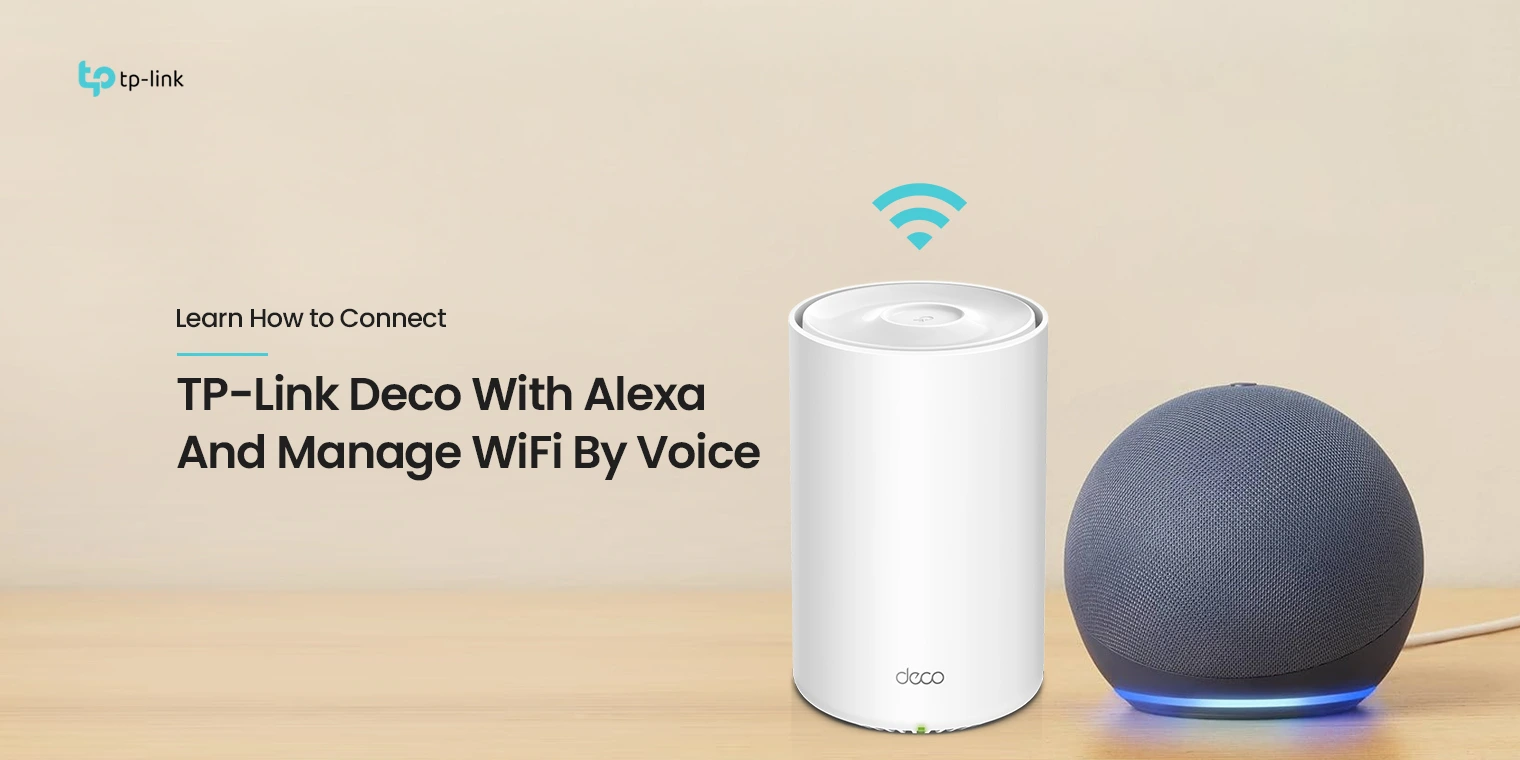
TP-Link Deco routers are a range of capable devices that cannot only be managed using the Deco app, but a range of other IoT devices and virtual assistants like the Alexa. You can control your Deco using Alexa easily. Once you integrate Alexa to the router, you can manage the settings, features and functions using simple commands. If you have a TP-Link Deco at your home and are looking for help setting it up with Alexa, this blog is your must read. We will explain the steps to connect TP-Link Deco to Alexa and get done with the process in no time.
But first, What is the TP-Link Router Skill for Alexa?
TP-Link router skills is a series of skills developed for TP-Link WiFi routers and other devices. With this feature, you can control and customise your home network by giving simple voice commands to Alexa.
TP-Link router skill has two different types of skills viz. Custom skill and native skill. The only difference between both is when using custom skills, you need to add the TP-Link prefix to voice commands, and with native skills, no such prefix is required. To understand this better, here’s an example:
With Custom Skill- Alexa, ask TP-Link to turn on the Guest WiFi.
Native Skill- Alexa, turn on the Guest WiFi
Now, which skill works for your particular device, depends entirely on the device model you own. At present, Archer A7, Deco M5, Deco M9 Plus, Deco M4, and Deco P7 support the native skill. Therefore, if your Deco router falls in this category, you can continue with the TP-Link Deco Alexa setup.
Functions You can Control
Once you have TP-Link Router skills added, you can control some of the functions of your TP-Link Deco. These include Guest Network, Night Mode, the LEDs, etc. You can use this link to check if your router model is compatible with Alexa.
Using the TP-Link Router Skills
If you are looking to use the TP-Link router skills, you can speak to your Amazon speaker you have at home and use the voice commands like:
Function
Action
Command
LED
On
Alexa, turn on router lights
Off
Alexa, turn off router lights
Night Mode
On
Alexa, turn on night mode
Off
Alexa, turn off night mode
WPS
On
Alexa, turn on WPS
Guest Network
On
Alexa, turn on Guest network/ Turn on Guest WiFi
Off
Alexa, turn off guest network/ Turn on Guest WiFi
QoS
On
Alexa, set QoS to gaming or streaming or standard or chatting or surfing or custom mode.
Or
Alexa, set Application priority to gaming or standard/ streaming or chatting or custom or surfing mode.
How to connect TP-Link Deco mesh WiFi to Alexa?
You can enable Alexa voice service and talk directly with Alexa to enjoy all helpful skills. Here are some steps you can follow for the same:
- To start, launch your Deco app and swipe right to bring up the menu pane.
- Click the ‘Alexa Voice Service’ option, or go to ‘More’ and select ‘Alexa Voice Service’ from the advanced options menu.
- From this menu, select the ‘Enable Alexa’ option to start the voice activation process.
- After that, log in to your Amazon account. If you do not yet have one, you will need to create an account first, as it is mandatory to have an account anytime you want to configure Alexa to a Deco.
- You will have to do this every time you want to enable or access Alexa capabilities on the Deco device.
- From there, you will be able to manage your Deco sound configurations and select or adjust the language settings you want Alexa to use.
- You may also have your Deco emit sounds and be more responsive to voice wake words and instructions.
Other Steps to Connect TP-Link Deco to Alexa
Using the Tether App
- With the TP Link Tether App opened on your smartphone, tap on the icon that looks like three horizontal lines (the Menu icon).
- Tap on Smart Life Assistants, where you will find and select the option Alexa Integration.
- From the TP Link Tether App, select Smart Life Assistants, select Alexa Integration, and enable the integration.
TP-Link Deco Alexa Setup Using the Deco App
- With the Deco App opened on your smartphone, tap on the Menu icon (≡).
- Select Link Account, you will see and select the option Alexa Integration.
- From the Deco App, select Link Account and enable the integration.
- To enable the integration, we will follow the TP Link Tether App example.
- First, you will need to enable the TP Link Router Skill on the Alexa App.
- For detailed instructions, you can click on the Learn How button on the Alexa Integration page. If there are two or more Alexa-compatible TP-Link devices connected to a single TP-Link account, you must select one to control for your voice commands, as only one device can be controlled at a time.
- To select a device for voice control, Step 3 must be completed.
- With the TP Link Router Skill, you can set a temporary active period for your preferred devices. For example: If you say, “Alexa, tell TP Link to set my preferred devices as active”, your chosen devices will be prioritized for voice commands.
Once you have followed these steps, you have already completed the process to connect TP-Link Deco to Alexa.
The Final Word
Once you connect TP-Link Deco to Alexa, you will be able to use the same with the Alexa voice commands. The TP-Link Deco Alexa setup is easy and you can follow the simple steps to configure the settings. If you have any questions or face issues with the configuration, you can always reach out to the team at our end for help.