

Wi-Fi problems have a funny way of showing up when you least expect them. One corner of the house works flawlessly, while the next room feels like it’s stuck in 2008. Mesh systems like TP-Link Deco are built to solve exactly that problem. Still, even reliable systems can misbehave now and then. When they do, knowing a few practical TP Link Deco troubleshooting basics can save you a lot of time.
Whether you’re handling everyday TP Link Deco M4 troubleshooting in a small home or digging into TP Link Deco M5 troubleshooting for a busier, dual-band setup, the core idea is the same: understand how your network behaves before trying to fix it. This guide focuses on the issues people actually run into—random dropouts, stubborn red lights, and nodes that refuse to cooperate.
Understanding the LED Status Codes
Before you unplug the Ethernet and other power cables, you should start with some basic tp link deco troubleshooting steps. And the basic thing is to look for the LED light on your Deco unit. TP-Link uses a simple color-coded system to tell you exactly what is wrong.
- Pulse Blue means the Deco is ready for setup.
- Solid blue light indicates that the Deco is currently setting itself up.
- Solid Green/White says that everything is working perfectly.
- Pulse Red means the satellite node has lost connection to the main Deco.
- Solid Red says that the Deco has a functional issue, or it could be a loss of internet access from the modem.
If you see a solid red light on your main unit, you need to talk to your Internet Service Provider (ISP), or you have to troubleshoot your Ethernet cable that connects your modem to the Deco. If it’s a pulsing red light, it means you are dealing with a weak signal/range issue.
Common Connectivity Fixes for Deco M4 and M5
The Deco M4 and M5 are the backbones of the TP Link system. No wonder they are known for their reliability, yet their smaller internal antennas can sometimes struggle with the interference of your room’s thick walls or household electronics like microwaves, etc.
Change Equipment Placement
Poor placement of your device is one of the major causes for poor connectivity. This is from where you should start TP Link Deco M5 troubleshooting. Start with adjusting the node placement. Remember, mesh nodes work best when they have a clear “line of sight” to one another.
- Midpoint placement works best: Satellite nodes should sit roughly halfway between the main unit and the weak-signal area.
- Avoid hiding the device: Cabinets, TV units, and enclosed shelves restrict signal spread. Open space helps.
- Watch for interference: Microwaves, cordless phones, and even reflective surfaces can quietly disrupt Wi-Fi.
Check the Physical Connections
It may sound strange, but a loose Cat5e or Cat6 cable is often seen as a reason for connectivity issues. Ensure the cable is properly plugged in the WAN/LAN port. For TP Link Deco M4 troubleshooting, remember that the M4 has two auto-sensing ports. Sometimes, swapping the cable to the other port can trigger a modem reset-like scenario and resolve IP configuration errors.
Advanced Troubleshooting: Using the Deco App
When simple tp link deco troubleshooting doesn’t help, the TP-Link Deco app becomes a lifesaver. This app is capable of offering visibility into issues that are not obvious at first troubleshooting.
Firmware Updates
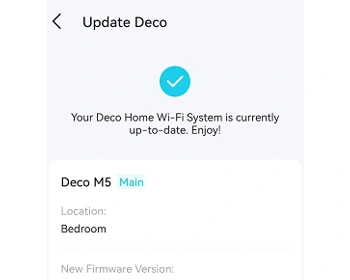
When your systems are running on the outdated firmware/software, you will definitely see stability errors and glitches. TP-Link frequently releases security patches and software updates to fix security vulnerabilities and improve node-to-node handovers. So, always keep your system’s firmware updated. To do so—
- Open the Deco App.
- Tap More > System > Update Deco.
If an update is available, install it immediately. This often resolves “ghost” disconnections where nodes drop for no apparent reason.
Reduce WiFi Congestion
In apartments or crowded neighborhoods, where everyone is having a Wi-Fi connection, Wi-Fi congestion is a common problem. Although Deco selects channels automatically, it may sometimes pick the wrong option.
To handle this, use the “Network Optimization” feature in the app. It scans nearby networks and shifts your system to a channel with good and clear signal strength. The improvement is often noticeable right away, especially during peak usage hours.
The "Power Cycle" and Hard/Factory Reset Method
If tp link deco troubleshooting steps haven’t solved the issue, it is time to try a hard/factory reset.
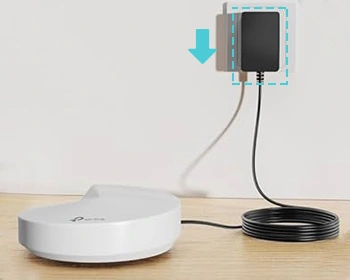
It is not about switching on and off your system or unplugging devices. Follow this specific order to ensure the IP cache is cleared:
- Unplug both your modem and main Deco unit.
- Wait for at least a minute/60 seconds.
- Plug the modem back in and wait for the “Internet” light to go solid.
- Plug in the main Deco and wait for it to turn green.
- Reconnect/plug in your satellite M4 or M5 units.
This will clear the system cache and will force it to have new IP entries.
Performing a Factory Reset
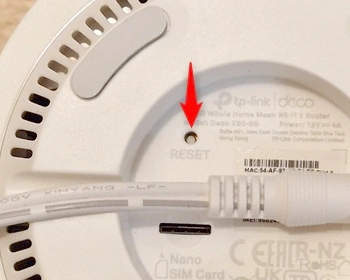
If, during tp link deco troubleshooting, your system is completely unresponsive, then you need to locate the Reset button on the bottom of the device. You will be requiring a paperclip to hold it down for one second while the unit is powered on. Here, a yellow LED means a reset is complete. You will then need to re-add the node through the app as you did for the first time.
Final Thoughts on Mesh Maintenance
Always remember, like other systems at your home, a Wi-Fi network isn’t a “set it and forget it” utility. To keep your Deco system running smoothly, keep checking the app once a month for firmware updates, and make a habit of using available optimization tools.
By following these TP-Link Deco troubleshooting steps, you can have the best connectivity, good signal strength & speed, and your frustration levels stay low.
Need more help with TP-Link Deco Internet Issues?
Connect with the team of experts at our end for help, today!