TP Link Deco Setup Guide- Easy Steps to Get Started
TP-Link Deco routers can perform well beyond your expectations with fast internet speeds, data transfer rates, low latency and a range of other features. However to ensure you can make the most out of these devices and features, you’ll need to know how to set things up. This page will walk you through the easy steps to complete the tp link deco mesh setup in no time. You’ll find key information on the steps you can follow to configure the settings using the app and without the app.
TP-Link Deco Mesh Setup- A Brief Overview
The Deco Mesh systems make it possible to access the internet on the go with the Mesh network technology they offer. The child nodes form an interconnected network that works together so you can move freely from one location to the other with uninterrupted WiFi access. Even if you wish to expand the network further, you can simply add an additional Deco node and you are good to go.
The devices can be configured for internet use either using the Deco App, or using the web-based setup wizard. For both processes, you’ll need some essential details and equipment so you can proceed hassle-free.
Once you have completed the tp link deco setup process, you’ll find WiFi access across different corners for your location. The different nodes work in sync with each other to move WiFi signals around obstacles and provide complete network coverage at all times.
How to Setup TP Link Deco Router?
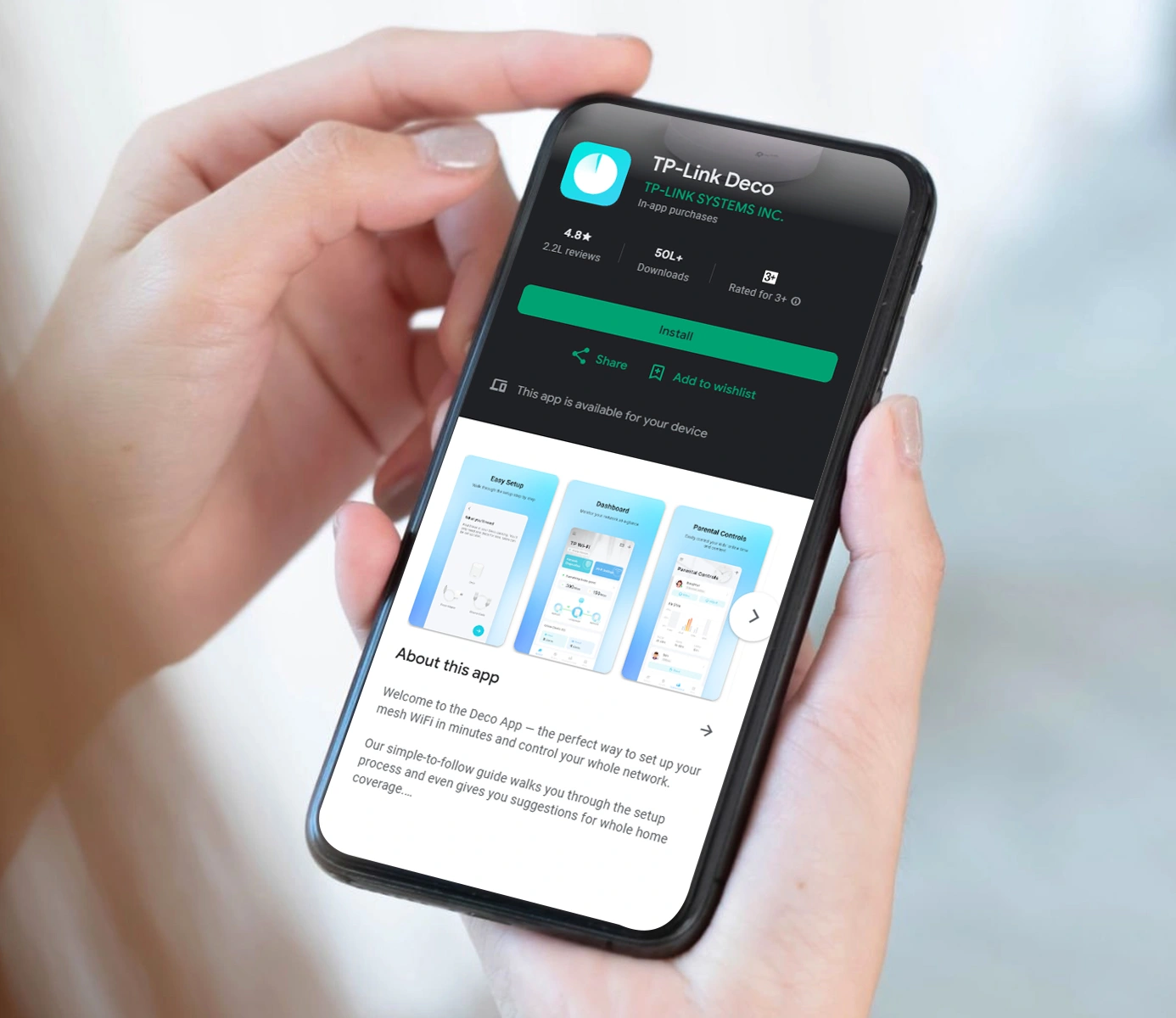
As mentioned, you can configure your TP-Link Deco Mesh system using the Deco App and the web-based setup wizard. However, before you start, you’ll need to disable the power-saving mode on the phone. If you are using an iOS device with Version 14 and above, you must enable the local network to complete the configuration process. The Deco router can then be set up using the Deco App, which is available on Android and iOS devices. You can download the same from the App Store and the Google Play Store. Once installed, you can follow the simple on-screen steps to configure the settings. If the app is already installed, ensure that it is on the latest version. Once the app is ready, here are some steps you can follow:
- Launch the Deco app on your smartphone and login using the TP-Link ID. If you have a TP-Link Cloud account, you can also log in using the account.
- If not, you’ll need to create a TP-Link ID. We suggest creating one as it will be needed to manage the devices in the future.
- After you are logged in to the app, tap on the Let’s Begin button. The app will then ask you to select the Deco model. You will see a list of Deco router models on the screen. Locate the model you have and tap on the same to begin with the setup process.
- Once on the next step, unbox the contents of the box and verify that you have everything to start with. The essential requirements are the Deco router itself, a power adapter that comes in the box, and an ethernet cable to connect the router to the MODEM at your home/office.
Network Settings for your TP Link Deco Mesh Setup
- Tap on the Go button on the app. Follow the on-screen instructions to power off the modem and then connect it to your Deco Mesh router using the ethernet cable.
- Once you have connected the Deco router to the MODEM, turn the power connection on and allow some time for them to boot up.
- Allow some additional time for the Internet Light to turn solid green on the MODEM. Now, turn on the Bluetooth on your phone and wait until the Deco’s LED light starts to blink in Blue color.
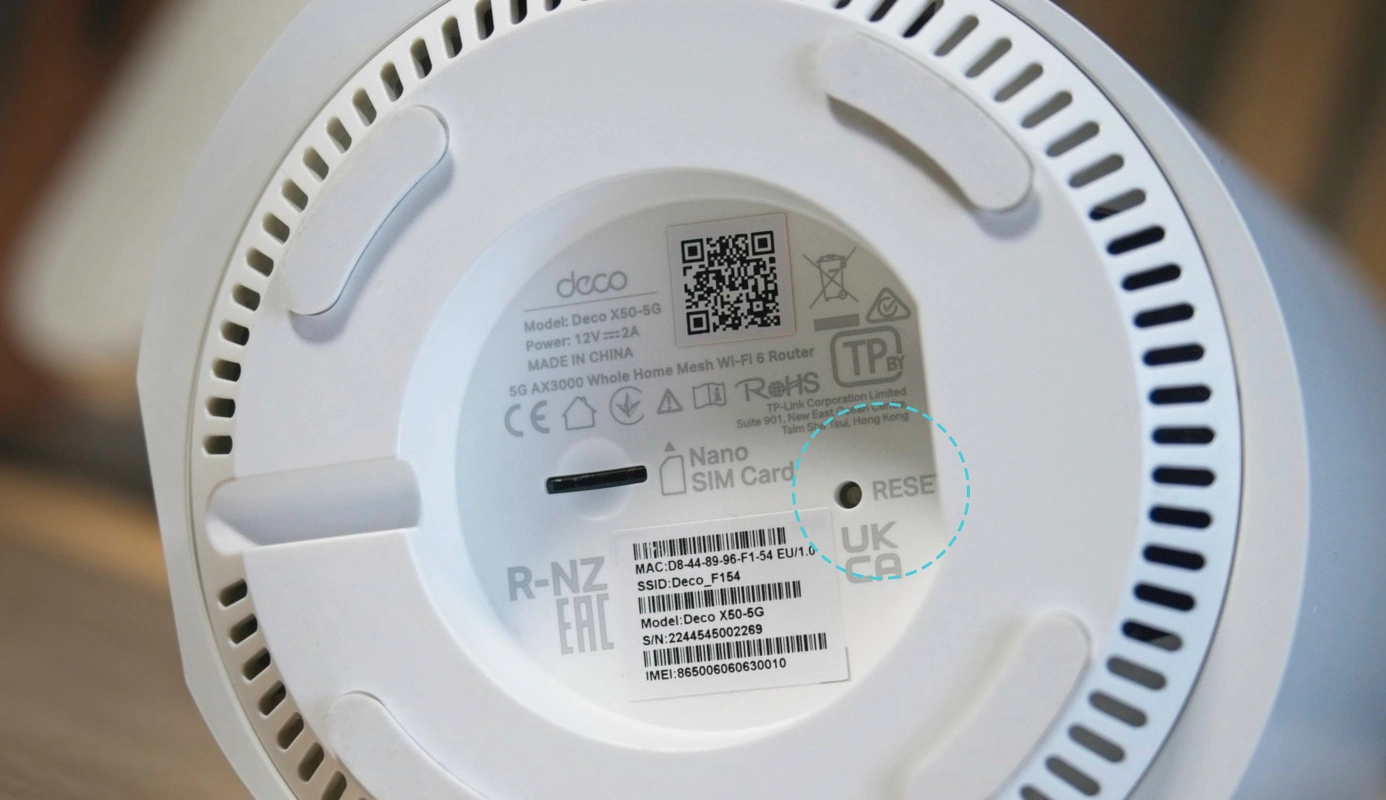
- If the LED doesn’t blink in blue color, press the RESET button on Deco for about a second and wait for the LED to turn yellow. Just wait for about 2 minutes more until the LED turns to blinking blue and proceed with the next steps.
- Your tp link deco setup will now attempt to find and link to a wireless device nearby and you will see the network SSID of the router pop up on your smartphone app.
- Once the app detects the Deco router, you can proceed with the next instructions to connect it to a room. The location can also be used as the Deco’s name.
- Once selected, select the internet connection type- like PPPoE, Dynamic IP or Static IP. You may also be required to fill in the VLAN ID if ISP required. These details are often provided by the ISP(Internet Service Provider), so you should connect with them first. Once you have the same, type in the VLAN ID and follow the rest of the steps.
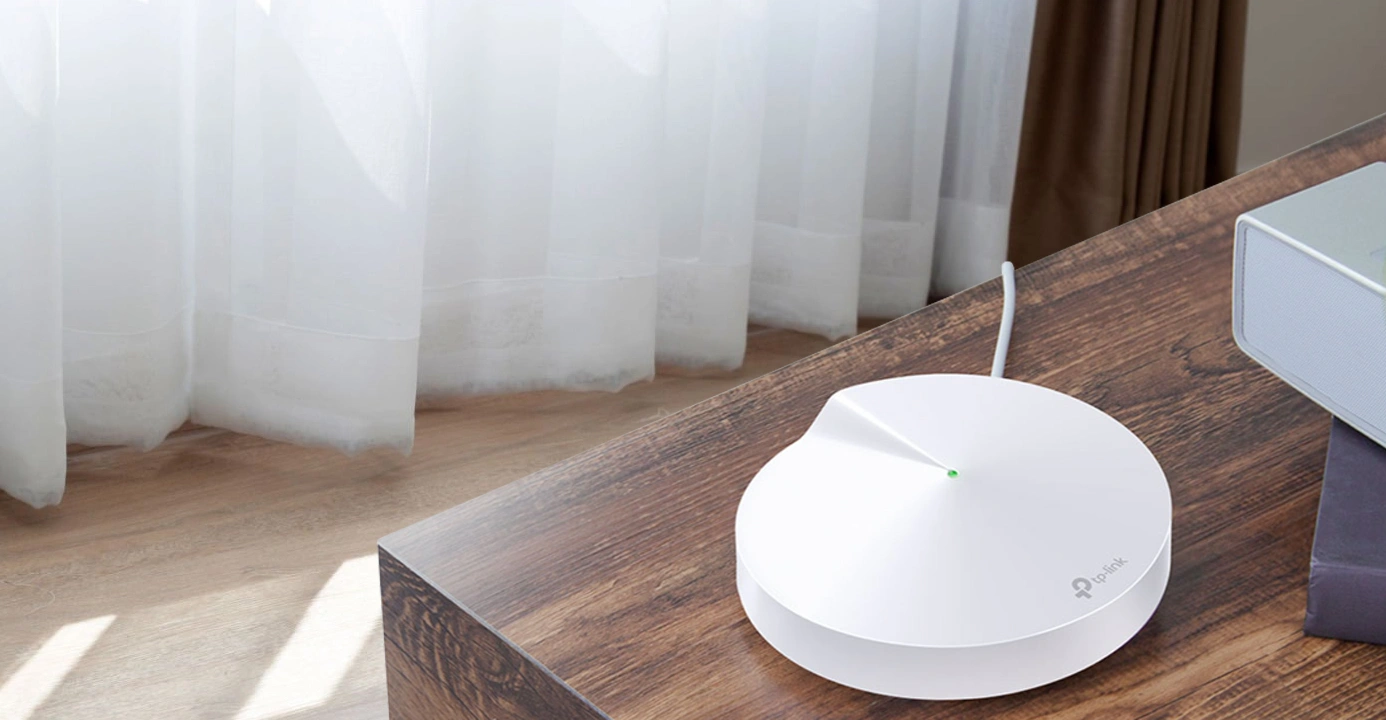
Modifying the Network Settings
- Use the app to create a WiFi Network name and password. Type in the network SSID you want to keep for the device’s network and type in the password as well. Note down these details as these will be used to connect your wireless devices to the network.
- Connect your phone/tablet to the Deco’s WiFi and connect to the network.
- The tp link deco setup is now complete and you can connect all your devices to the deco network. Tap on the Done button to conclude the process.
How to add more Deco Units to the Mesh Network?
As mentioned, you can configure your TP-Link Deco Mesh system using the Deco App and the web-based setup wizard. However, before you start, you’ll need to disable the power-saving mode on the phone. If you are using an iOS device with Version 14 and above, you must enable the local network to complete the configuration process. The Deco router can then be set up using the Deco App, which is available on Android and iOS devices. You can download the same from the App Store and the Google Play Store. Once installed, you can follow the simple on-screen steps to configure the settings. If the app is already installed, ensure that it is on the latest version. Once the app is ready, here are some steps you can follow:
- Launch the Deco App and head to the Network tab.
- From the top right corner, tap on the + button and select the ‘Add a Deco Unit’ button.
- Search for the device and select the Deco model you have. You can follow the app instructions to add the Deco satellite device to the home network.
- Once the setup is complete, you can connect them to a power outlet at the location where you want to use the WiFi at.
TP Link Deco Setup without App
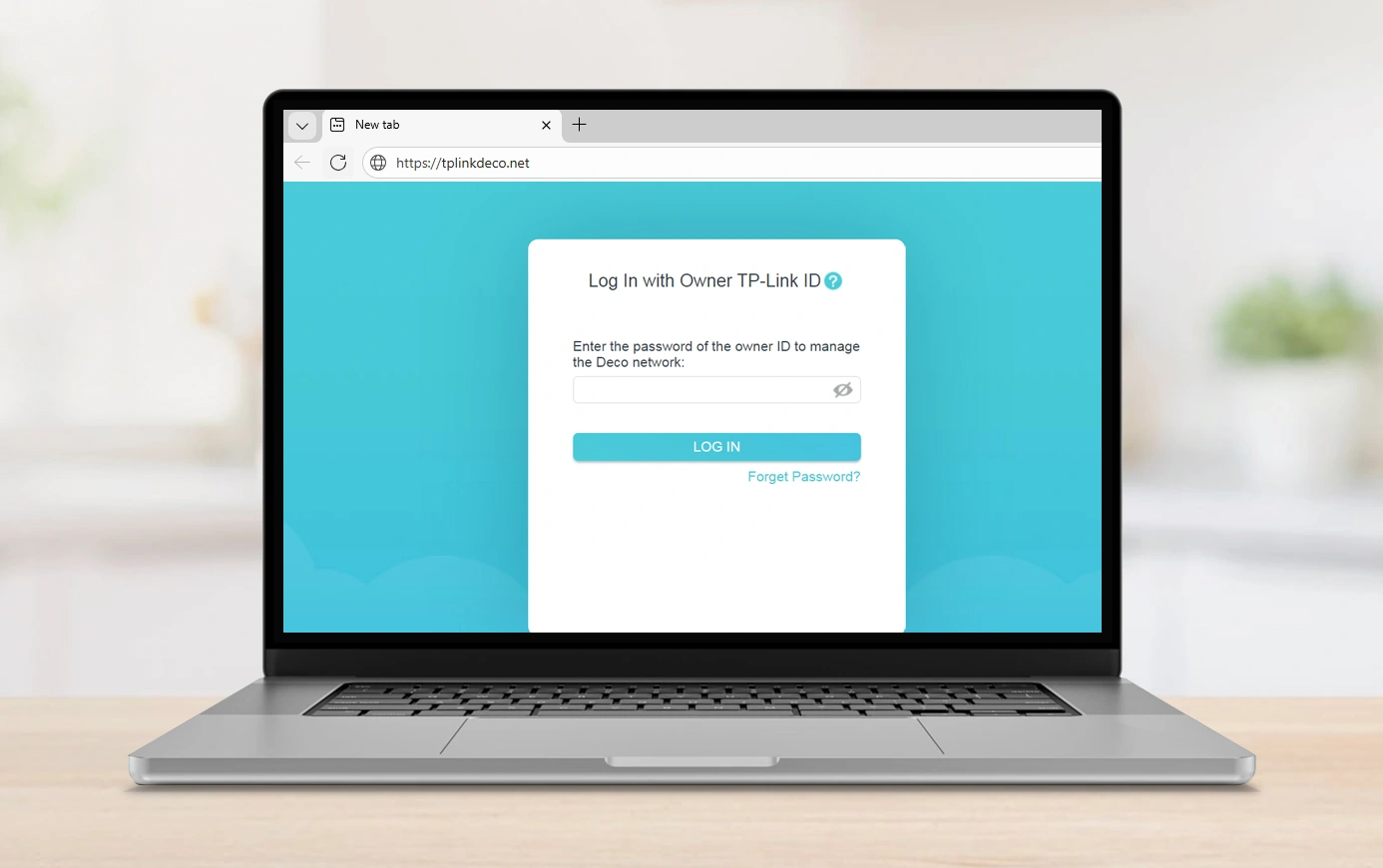
You can also configure your TP-Link Deco setup using the web-based setup wizard. The default web address tplinkdeco.net or the default IP address 192.168.68.1 can be used to access the web setup wizard and continue with the network configuration process. Here are some steps you can follow:
- Connect your router to the computer using an ethernet cable. You can also connect the two wirelessly using a WiFi network.
- Once connected, open a web browser and in the URL bar, type in the default web address or the IP address and press Enter. It will redirect you to the TP-Link Deco router login page.
- Type in the default login credentials for the device in their respective fields and click on the Login button. You can find these details on the product label or in the user guide that arrives in the box.
- Once you are logged in to the TP Link Deco setup wizard, you can follow the on-screen instructions to configure the device settings, network settings, and also connect additional deco nodes to expand the network further.
- After the TP Link Deco Setup without App is complete, the green light on the device will indicate that you can now connect your devices to the Deco’s network and start using the internet in a hassle-free manner.
What are the steps to complete tp link deco setup as access point?
Access Point mode on your tp link deco setup can help extend the existing wired network and expand the wireless coverage for your home network. Once the router is set up for use as an access point, the Deco system will not create its own subnet but will simply forward data between the main router and client devices.
Before you setup TP-Link Deco router in Access Point mode, here are some things to keep in mind:
- Ensure that the Deco’s firmware is up-to-date to be able to use the Access Point mode. If you are not sure, you can open the Deco App and tap on the More button to head to the System section and then tap on the Update Deco to check if there’s a new one available for your device.
- Ensure that the Deco App that’s installed on your device is on the latest version. This will ensure that you can use the AP mode conveniently.
- When in access point mode, the tp link deco mesh setup will not act as a DHCP server to assign IP addresses to other client devices. Therefore, ensure that the DHCP server function is enabled on the parent router itself.
- Also since all the client devices are managed by the parent router, some advanced features may not be available in the TP-Link Deco App. These can be Antivirus, Parental Controls, Port Forwarding, Address Reservation, TP-Link DDNS, etc.
- You will also be able to use the Ethernet Backhaul in this mode.
Steps to complete tp link deco setup as access point:
- Connect your smartphone with the app to the Deco router’s WiFi network and launch the app.
- Tap on the More button and then head to Advanced to select the Operation Mode option.
- From the available options, tap on the Access Point option and then tap on Apply. The app will prompt you about the reboot operation that follows after tapping on Apply.
- Tap on the Ok button from the prompt and the device will reboot. The progress will be shown on the app.
- Wait till the device reboots, which will take almost 2 minutes. Once the LED on the device turns to solid green, the deco system will start working in AP mode.
Your TP-Link Deco Setup is now configured to work as an access point.
The TP-Link Deco Setup failed to Complete. What should I do?
While you are setting up your TP-Link Deco router, you may encounter issues and error codes, bringing up issues with the configuration process. If your TP-Link Deco Mesh Setup fails to complete, here are some troubleshooting steps you can follow:
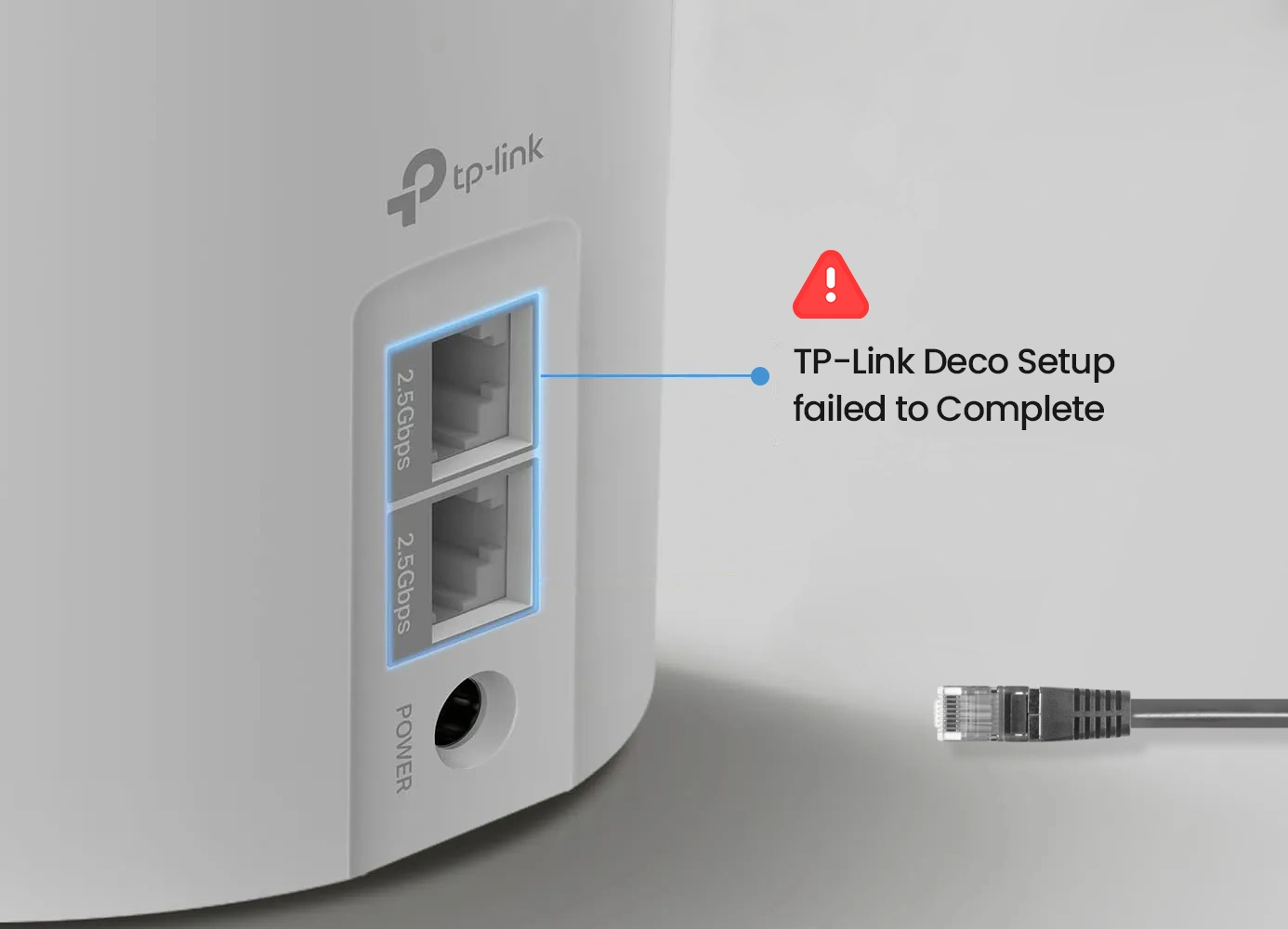
- If you are trying to complete the WAN setup, but it fails, switch to a wired connection. Use an ethernet cable to connect your devices to each other. If you’re already on a wired connection, use a different cable to connect the devices.
- Try changing the ethernet port on the main deco unit.
- Connect a laptop to the modem device directly and verify if the service works now.
- If you see that the LED on the router is off and doesn’t blink, you can change the power adapter and the outlet. Try using a different adapter and power outlet from the packaging.
- If the LED on the deco router is not pulsing blue, you can reset the device to factory settings. Find the RESET button at the bottom of the Deco router and press it for about a second and then release it. Once the LED on the main deco unit turns yellow, allow like 2 minutes till the main LED is pulsing in Blue color.
- If the LED on the device is solid green or white, it means that the WiFi has been created already. You can now force close the Deco app and head to the Settings to select WiFi on your smartphone to manually connect to the new WiFi network. If the LED continue to pulse in blue color, you will need to configure the device settings again using a different WiFi name.
How do I Reset Tp link Deco setup?
You can reset your tp link deco mesh setup easily using the reset button on your device. Here are some simple steps you can follow:
- Locate the reset button on your device.
- Press and hold the same for a few seconds until the LED color changes to yellow, release the button.
- Allow about 2 minutes for the device to reboot and you can then reconfigure the device settings.
You can reset your tp link deco mesh setup easily using the reset button on your device. Here are some simple steps you can follow: